

I’ve been working with hybrid environments for years now, and there’s one problem that keeps coming up in nearly every conversation with other IT pros: when you move from on-premises Active Directory to Entra ID, you lose the beautiful organizational structure that OUs provided. In traditional AD, we could organize devices by location, department, or any hierarchy that made sense. Entra ID gives you a flat list of devices, and that’s it.
My breakthrough came when I was setting up dynamic membership rules for device groups in Intune. I noticed that in the rule builder, there were references to device.extensionAttribute1 through device.extensionAttribute15. These 15 extension attributes are essentially blank fields on every user/device object in Entra ID that you can populate with whatever organizational data you need. And additionally, you can use them in dynamic group membership rules.
This was the answer I’d been looking for. If I could automatically populate these attributes with organizational data from our on-premises AD, I could recreate the structure we lost and enable truly automated device management through dynamic groups.
1. What You Lose When Moving to the Cloud
Let’s use a practical example. Consider the Contoso Corporation, a Microsoft fictional organization with offices in Paris, Moscow, New York, and Bangalore. In their on-premises Active Directory, Contoso has a well-organized OU structure:
DC=contoso,DC=com
├── OU=Paris
│   └── OU=Devices
├── OU=Moscow
│   └── OU=Devices
├── OU=NewYork
│   └── OU=Devices
└── OU=Bangalore
    └── OU=Devices
With this structure, deploying a Paris-specific application or applying New York office WiFi settings was straightforward—just scope a GPO to that OU. When Contoso transitions to Entra ID and Intune, this organizational hierarchy disappears. They’re left with several critical gaps:
Missing in Entra ID:
- No organizational hierarchy or OU structure
- No native way to identify device location (Paris, Moscow, New York, Bangalore)
- No automatic categorization by department, cost center, or business unit
- Limited metadata on device objects for filtering and reporting
Impact on Intune Management:
- Cannot automatically apply location-based policies (WiFi profiles, VPN configurations)
- Manual group management required for every device
- New devices don’t inherit appropriate configurations automatically
- Difficult to scope compliance policies by office or region
Impact on Security Policies:
- Cannot apply location-specific security baselines
- Conditional Access policies lack device context
- Risk-based policies cannot consider organizational attributes
- Audit and compliance reporting becomes complex
Without proper device categorization, Contoso’s IT team faces constant manual work to update group memberships, apply correct policies, and maintain compliance across their global infrastructure.
2. Extension Attributes as Your Organization’s DNA
Entra ID device objects have 15 extension attributes (extensionAttribute1 through extensionAttribute15) that most people never touch. These are just string fields where you can store whatever data you want. And crucially, you can use them in dynamic group membership rules.
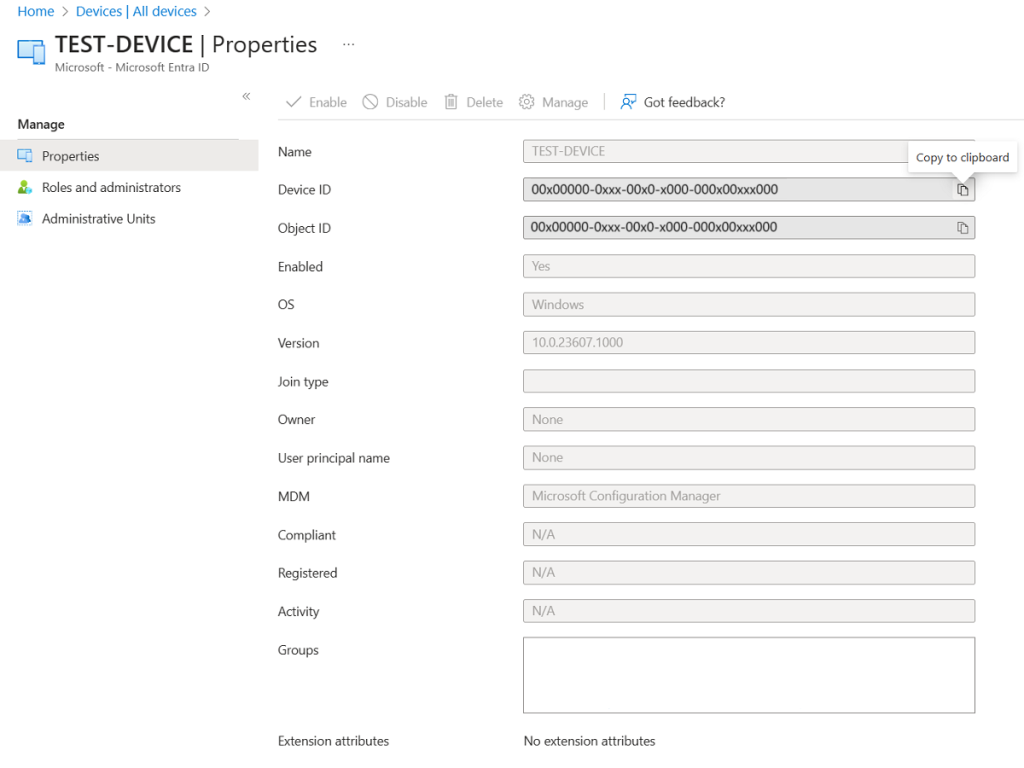
Think about what this means for Contoso. If they populate these attributes with organizational data, they can create dynamic groups that automatically include the right devices. A new laptop in the Paris office joins Entra ID with extensionAttribute12 set to “Paris”, and it automatically gets added to all the correct groups and receives the Paris WiFi profile, VPN settings, and local compliance policies. No manual intervention needed.
The key is figuring out where to get this organizational data and how to keep it synchronized. In Contoso’s hybrid environment—like most organizations—this data already exists in on-premises Active Directory. User objects have department, location, and cost center information. Device objects are organized in OUs that represent sites. The challenge is getting this data into Entra ID’s flat structure.
Here’s how I’m using extension attributes for organizations like Contoso:
I use extensionAttribute12 for site codes, which I extract from the device’s OU in AD. If a computer sits in “OU=Devices,OU=Paris,DC=contoso,DC=com”, I extract “Paris” and store it in that attribute. Now every device knows which office it belongs to.
For attributes 1, 2, 3, 5, 6, 7, 8, and 13, I copy the same numbered extension attributes from the device’s primary user in on-premises AD. Most organizations already use these for things like department codes, cost centers, or business units. By copying them from the user to their device, the device inherits the user’s organizational context.
ExtensionAttribute4 gets the user’s country code from the AD c attribute, and extensionAttribute10 stores their division. I use extensionAttribute15 as a Windows Autopatch ring flag to help me recognize which devices belongs to which Autopatch ring.
The beauty of this approach is that it’s completely flexible. You can map whatever data makes sense for your organization into these attributes.
How the Synchronization Works
The automation I built follows a straightforward flow. The script runs on a server that has access to both on-premises AD and Microsoft Graph API.
First, it queries Active Directory for computers in a specific OU—for example, “OU=Devices,OU=Paris,DC=contoso,DC=com”. For each device, it parses the distinguished name to extract the site code from the OU structure. Then it looks up that device in Intune using the Managed Devices API to find its primary user. Once it has the primary user’s UPN, it goes back to on-premises AD to retrieve that user’s attributes. Finally, it takes all this collected data and pushes it to the device object in Entra ID through the Graph API.
The script needs to run on a system that can reach your domain controllers and has the Microsoft Graph PowerShell modules installed. You can schedule this to run automatically—I’ll mention scheduling options briefly later.
Setting Up the Authentication
Before the script can do anything, you need to create an App registration in Entra ID and grant it specific API permissions. This app identity is what the script uses to authenticate to Microsoft Graph.
In the Azure portal, register a new application and configure these Microsoft Graph application permissions:
DeviceManagementManagedDevices.Read.All– to read Intune managed device dataDevice.ReadWrite.All– to update Entra ID device objectsUser.Read.All– to look up user information from Entra ID
After granting these permissions, create a client secret for the application. Store this secret securely—never commit it to source control or store it in plain text in your scripts.
You’ll also need the ActiveDirectory PowerShell module to query on-premises AD, and the Microsoft Graph modules for the API calls. Here’s how the authentication part looks:
Install-Module Microsoft.Graph.Authentication -Scope CurrentUser
Install-Module Microsoft.Graph.DeviceManagement -Scope CurrentUser
Install-Module Microsoft.Graph.Identity.DirectoryManagement -Scope CurrentUser
Install-Module ActiveDirectory -Scope CurrentUser

$SecureSecret = ConvertTo-SecureString $ClientSecret -AsPlainText -Force
$Credential = New-Object System.Management.Automation.PSCredential($ApplicationId, $SecureSecret)
Connect-MgGraph -TenantId $TenantId -ClientSecretCredential $Credential -NoWelcome
For production environments, consider storing the client secret as an encrypted file or using Windows Credential Manager rather than passing it as a plain text parameter.
Finding the Primary User in Intune
The first real challenge is identifying the primary user affinity for each device. Intune tracks which user primarily uses each device through this primary user association, which you can retrieve through the managedDevice resource type in Graph API. The tricky part is that the device name in Intune might not exactly match what you’re searching for, and sometimes multiple devices have the same name.
Here’s the function I use to handle this:
function Get-PrimaryUserFromIntune {
    param($DeviceName)

    try {
        $IntuneDevice = Get-MgDeviceManagementManagedDevice `
            -Filter "deviceName eq '$DeviceName'" `
            -ErrorAction SilentlyContinue

        if (-not $IntuneDevice) {
            $IntuneDevice = Get-MgDeviceManagementManagedDevice `
                -Filter "displayName eq '$DeviceName'" `
                -ErrorAction SilentlyContinue
        }

        if ($IntuneDevice -is [System.Array]) {
            $IntuneDevice = $IntuneDevice |
                Where-Object { $_.DeviceName -eq $DeviceName } |
                Select-Object -First 1
        }

        if (-not $IntuneDevice) {
            return $null
        }

        $PrimaryUserUPN = $null

        if ($IntuneDevice.UserPrincipalName) {
            $PrimaryUserUPN = $IntuneDevice.UserPrincipalName
        }
        elseif ($IntuneDevice.Id) {
            $DeviceUsers = Get-MgDeviceManagementManagedDeviceUser `
                -ManagedDeviceId $IntuneDevice.Id `
                -ErrorAction SilentlyContinue

            if ($DeviceUsers) {
                $FirstUser = $DeviceUsers | Select-Object -First 1
                $PrimaryUserUPN = $FirstUser.UserPrincipalName
            }
        }

        return $PrimaryUserUPN

    } catch {
        return $null
    }
}
The function first tries to find the device by its deviceName property, then falls back to searching by displayName if that doesn’t work. If it finds multiple devices with the same name, it picks the first one that’s an exact match. Some devices won’t have a primary user—think shared computers at Contoso’s conference rooms or kiosks at the reception desk—and that’s okay. The function returns null in those cases, and we just skip the user attribute part for those devices.
Getting User Attributes from On-Premises AD
Once we have the primary user’s User Principal Name (UPN) from Intune, we need to look them up in on-premises Active Directory to retrieve their organizational attributes. For Contoso, this might be a user like alan.brewer@contoso.com whose device is in the Paris office. The challenge here is that UPN-based searches don’t always work reliably in every environment, so I’ve built in a fallback to search by sAMAccountName.
function Get-UserAttributesFromAD {
    param($UserUPN)

    if (-not $UserUPN) { return $null }

    try {
        $Username = ($UserUPN -split '@')[0]

        $User = Get-ADUser -Filter "UserPrincipalName -eq '$UserUPN'" `
            -Properties c, division, `
                       extensionAttribute1, extensionAttribute2, extensionAttribute3, `
                       extensionAttribute5, extensionAttribute6, extensionAttribute7, `
                       extensionAttribute8, extensionAttribute13 `
            -ErrorAction Stop

        if (-not $User) {
            $User = Get-ADUser -Filter "samAccountName -eq '$Username'" `
                -Properties c, division, `
                           extensionAttribute1, extensionAttribute2, extensionAttribute3, `
                           extensionAttribute5, extensionAttribute6, extensionAttribute7, `
                           extensionAttribute8, extensionAttribute13 `
                -ErrorAction Stop
        }

        if (-not $User) {
            return $null
        }

        return [PSCustomObject]@{
            SamAccountName = $User.SamAccountName
            UserPrincipalName = $User.UserPrincipalName
            CountryCode = $User.c
            Division = $User.division
            ExtAttr1 = $User.extensionAttribute1
            ExtAttr2 = $User.extensionAttribute2
            ExtAttr3 = $User.extensionAttribute3
            ExtAttr5 = $User.extensionAttribute5
            ExtAttr6 = $User.extensionAttribute6
            ExtAttr7 = $User.extensionAttribute7
            ExtAttr8 = $User.extensionAttribute8
            ExtAttr13 = $User.extensionAttribute13
        }
    } catch {
        return $null
    }
}
The function returns a custom object with all the attributes we need. The c attribute is the ISO 3166 country code, and division represents the user’s business division within Contoso. If it can’t find the user in AD, it just returns null, and we’ll update the device with site information only.
Extracting Site Information from Device Location in AD
Every device in Active Directory has a Distinguished Name (DN) that shows its complete OU path. We can parse this to extract organizational information. In Contoso’s case, I’m pulling the site code from the OU structure to identify whether a device belongs to Paris, Moscow, New York, or Bangalore.
$DN = $Computer.DistinguishedName
$DNParts = $DN -split ','
$SiteCode = $null

if ($DNParts.Count -ge 4) {
    $SitePart = $DNParts[3].Trim()
    if ($SitePart -match '^OU=(.+)$') {
        $SiteCode = $matches[1]
    }
}
This example assumes Contoso’s site code is in the fourth segment of the DN. If a computer sits at CN=LAPTOP-FR-001,OU=Devices,OU=Paris,DC=contoso,DC=com, this will extract “Paris”. You’ll need to adjust the array index based on your own AD structure. Some organizations have device type OUs between the computer and the site (like “OU=Laptops,OU=Devices,OU=Paris”), others have a country-region-site hierarchy. The logic is the same; you just need to figure out which position contains the information you want.
Pushing Updates to Entra ID
Now comes the part where we actually update the device object in Entra ID using the Update device Graph API endpoint. We build a parameter object with all the extension attributes we want to set, then call Update-MgDevice. Here’s what that looks like:
$UpdateParams = @{
    extensionAttributes = @{}
}

$UpdateParams.extensionAttributes.extensionAttribute12 = $SiteCode

if ($UserAttributes) {
    if (-not [string]::IsNullOrEmpty($UserAttributes.CountryCode)) {
        $UpdateParams.extensionAttributes.extensionAttribute4 = $UserAttributes.CountryCode
    }

    if (-not [string]::IsNullOrEmpty($UserAttributes.Division)) {
        $UpdateParams.extensionAttributes.extensionAttribute10 = $UserAttributes.Division
    }

    $AttributeMappings = @{
        'ExtAttr1' = 'extensionAttribute1'
        'ExtAttr2' = 'extensionAttribute2'
        'ExtAttr3' = 'extensionAttribute3'
        'ExtAttr5' = 'extensionAttribute5'
        'ExtAttr6' = 'extensionAttribute6'
        'ExtAttr7' = 'extensionAttribute7'
        'ExtAttr8' = 'extensionAttribute8'
        'ExtAttr13' = 'extensionAttribute13'
    }

    foreach ($UserAttr in $AttributeMappings.Keys) {
        $EntraAttr = $AttributeMappings[$UserAttr]
        $Value = $UserAttributes.$UserAttr

        if (-not [string]::IsNullOrEmpty($Value)) {
            $UpdateParams.extensionAttributes.$EntraAttr = $Value
        }
    }
}

$UpdateParams.extensionAttributes.extensionAttribute15 = ""

Update-MgDevice -DeviceId $EntraDevice.Id -BodyParameter $UpdateParams -ErrorAction Stop
The key things to remember – only update attributes that actually have values, and implement delays between update calls to avoid hitting Microsoft Graph throttling limits. I use 200-500 milliseconds between device updates, which keeps things running smoothly without overwhelming the API.
Not all devices will have primary users. Shared devices at conference rooms, kiosks at reception, and lab equipment often don’t have a primary user affinity. That’s fine—you can still populate the site code and any other device-specific attributes manually. The script just skips the user attribute part for those devices.
I also recommend keeping an error log. Things will go wrong—devices that exist in AD but not in Entra ID, primary users who can’t be found, API calls that fail. Export these to a CSV so you can review them later and potentially retry failed updates.
3. Using Extension Attributes in Dynamic Groups
Once your devices have these extension attributes populated, you can create dynamic groups in Intune that automatically include the right devices. This is where the whole solution really pays off for organizations.
Creating a dynamic group for all devices in Paris office is as simple as setting the membership rule to:
(device.extensionAttribute12 -eq "Paris")Want all devices used by people in the Research department in Moscow? Combine multiple attributes:
(device.extensionAttribute10 -eq "Research") -and (device.extensionAttribute12 -eq "Moscow")The possibilities here are endless. You can deploy region-specific applications by creating groups based on country codes in extensionAttribute4. They can apply different compliance policies to different offices using extensionAttribute12. They can even integrate this with Conditional Access policies to enforce additional security requirements for specific divisions stored in extensionAttribute10.
The key advantage is that it all happens automatically. A new laptop gets enrolled at Bangalore office, the script runs and populates its extension attributes, and it automatically gets added to the Bangalore device group and receives the correct WiFi profile, VPN configuration, and regional compliance policies. No manual intervention needed.
Scheduling and Automation
In production, you’ll want this script to run automatically. The most common approach is setting it up as a Windows Scheduled Task on a hybrid-joined server. Alternatively, you can use Azure Automation with a Hybrid Runbook Worker if you’re in a cloud-first environment.
I recommend running daily incremental syncs that process specific OUs, combined with weekly full sweeps that catch everything. This balances thoroughness with API usage and execution time.
Keeping an Eye on Things
After you’ve got this running, you’ll want to verify that attributes are actually getting set correctly. Here are a couple of quick PowerShell commands I use regularly to query the device resource:
Get-MgDevice -Filter "displayName eq 'LAPTOP-FR-001'" `
    -Property "Id,DisplayName,ExtensionAttributes" |
    Select-Object -ExpandProperty ExtensionAttributes
This shows you all the extension attributes for a specific device, so you can verify the data looks right.
You can also set up basic alerting by checking your error log and sending an email if too many devices failed processing. This helps you catch issues early before they become bigger problems.
Security Best Practices
A few important points about keeping this secure. Your Azure AD app registration needs specific API permissions, but don’t give it more than necessary. DeviceManagementManagedDevices.Read.All lets you read Intune data, Device.ReadWrite.All lets you update Entra ID devices, and User.Read.All allows user lookups. Avoid Directory.ReadWrite.All—it’s way too broad for what we’re doing here.
A Few Additional Ideas
Once you’ve got the basic synchronization working, there are some interesting variations you can try.
If your organization has multiple AD forests or acquired subsidiaries, you can loop through them and process devices from each:
$Forests = @("contoso.com", "another.contoso.com")

foreach ($Forest in $Forests) {
    Set-ADDomain -Server $Forest -Identity $Forest
    $ADComputers = Get-ADComputer -Server $Forest -Filter * -SearchBase $SearchBase
}
Some organizations store useful information in the device description attribute in AD. You can copy that to an extension attribute too, e.g. extensionAttribute11 :
$ADComputer = Get-ADComputer -Identity $DeviceName -Properties Description

if (-not [string]::IsNullOrEmpty($ADComputer.Description)) {
    $UpdateParams.extensionAttributes.extensionAttribute11 = $ADComputer.Description
}
This is handy if Active Directory stores asset tags or internal codes in the description field.
You could even pull data from external systems like Lansweeper, ServiceNow…. and populate extension attributes from your CMDB. The principle is the same—get the data from wherever it lives, map it to extension attributes, and push it to Entra ID.
Extension attributes in Entra ID are one of those features that don’t get enough attention, but they solve a real problem for organizations transitioning to cloud-based device management. By automatically syncing organizational data from on-premises AD to these attributes, you can recreate the structure and automation capabilities that you thought were gone when you left OUs behind.
The script I’ve shared here has been running in production environments for months across thousands of devices. It’s not perfect—you’ll need to adapt it to your specific AD structure and organizational needs—but it provides a solid foundation to build on.
If you implement this in your environment, I’d love to hear about it. Feel free to reach out on LinkedIn with questions or to share your own variations on the approach.
Leave a Reply