

Introduction
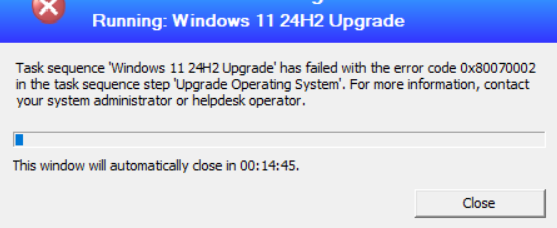
When deploying Windows 11 through Configuration Manager (SCCM) task sequences, monitoring deployment success becomes critical for enterprise environments. This post explained a Intune PowerShell detection script designed to identify failed Windows 11 24H2 upgrade task sequences and collect TS error number quickly.
Concept Overview
Remediation scripts in Intune serve as the simpliest method to apply quick fix . Unlike traditional deployment monitoring that relies on SCCM console reporting, this approach leverages Intune’s native detection capabilities to:
- Check SCCM TS logs Windows 11 24H2 deployments
- Parse SCCM client logs for task sequence failures
- Extract meaningful error codes for troubleshooting
- Return error code back to Intune .
The script operates on a simple principle: if a device successfully upgraded to Windows 11 24H2 (build 26100+), no further validation is needed. Otherwise, it examines the SMSTS.log file for task sequence failure indicators.
Implementation Details
Script Architecture
The detection script follows a hierarchical validation approach:
# Primary validation: Check OS version
if ($caption -like "*Windows 11*" -and $buildNumber -ge 26100) {
    # Success path - no further checks needed
    exit 0
} else {
    # Secondary validation: Parse task sequence logs
    # Extract failure details for remediation
}
Key Components
OS Version Detection: Uses WMI to identify Windows 11 build numbers, specifically targeting build 26100 (24H2) or higher.
Language Detection: Leverages DISM to extract installed language information, crucial for multilingual deployments where language packs might affect task sequence failure.
Log Parsing Strategy: Implements regex pattern matching against SMSTS.log files to identify specific task sequence failures:
$failedRun = Get-Content -Path $logPath |
           Select-String -Pattern "$tsID.+failed|exit code (?!0)" -Context 5,5 |
           Select-Object -Last 1
SMSTS.log Analysis Patterns
The script targets specific failure patterns in Configuration Manager logs. The regex "$tsID.+failed|exit code (?!0)" captures two critical failure scenarios:
- Explicit Task Sequence Failures: Lines containing the task sequence ID followed by “failed”
- Non-Zero Exit Codes: Any exit code other than 0, indicating process failure
Context Preservation
The -Context 5,5 parameter provides surrounding log entries, essential for troubleshooting complex deployment issues where the failure reason might appear in preceding or following lines.
Error Code Translation
The script converts decimal error codes to hexadecimal format, aligning with Microsoft’s standard error reporting conventions:
$errorCode = [regex]::Match($failedRun.Line, "exit code (\d+)").Groups[1].Value
$hexCode = "0x" + [Convert]::ToString([int64]$errorCode, 16)
Configuration Examples
Intune Detection Rule Configuration
When implementing this script in Intune, configure the detection rule as follows:
Detection Rule Type: Use custom script
Script Type: PowerShell
Enforce Script Signature Check: No (unless code-signed)
Run Script in 32-bit PowerShell: No
Expected Output Formats
The script generates structured output for different scenarios:
- Success (24H2 Detected):
{ en-US | Win11-24H2 } - Task Sequence Success:
{ en-US | TS-Success } - Task Sequence Failure:
{ en-US | 0xC1900101 | 11-15-2024 } - Log Not Found:
{ en-US | TS-LogNotFound }
Common Issues and Solutions
Issue 1: False Positives from Historical Log Entries
Problem: Script detecting old task sequence failures from previous deployment attempts.
Solution: The script uses Select-Object -Last 1 to focus on the most recent failure entry. For environments requiring more granular control, implement date filtering:
$recentFailures = Get-Content -Path $logPath |
                 Select-String -Pattern "$tsID.+failed|exit code (?!0)" |
                 Where-Object {
                     $dateMatch = [regex]::Match($_.Line, 'date="([^"]+)"')
                     if ($dateMatch.Success) {
                         $logDate = [DateTime]::Parse($dateMatch.Groups[1].Value)
                         $logDate -gt (Get-Date).AddDays(-7)
                     }
                 }
Issue 2: DISM Language Detection Failures
Problem: DISM commands failing on certain Windows builds or configurations.
Solution: Implement error handling around DISM operations:
try {
    $dismOutput = & DISM.exe /online /Get-Intl 2>$null | Out-String
    if ($LASTEXITCODE -ne 0) {
        $installedLanguage = "DISM-Error"
    }
} catch {
    $installedLanguage = "DISM-Exception"
}
Issue 3: CCM Log Path Variations
Problem: SMSTS.log location varies between SCCM client configurations.
Solution: Implement multiple path checking:
$possiblePaths = @(
    "$env:SystemDrive\Windows\CCM\Logs\SMSTS.log",
    "$env:SystemDrive\_SMSTaskSequence\Logs\SMSTS.log",
    "$env:TEMP\SMSTS.log"
)

$logPath = $possiblePaths | Where-Object { Test-Path $_ } | Select-Object -First 1
Advanced Debugging Features
The script includes debug logging capabilities for troubleshooting detection issues:
$debugFilePath = "$env:TEMP\TSDetection_Debug.log"
"Debug: Found match: $($failedRun.Line)" | Out-File -Append -FilePath $debugFilePath
This approach enables administrators to review detection logic without modifying the primary script behavior.
Summary:
- Layered Validation: Prioritize OS version checks before log parsing to minimize unnecessary processing
- Structured Output: Consistent output formatting enables automated remediation workflows if required
- Language Awareness: Include language detection for multinational deployments > for Windows 11 24H2 – most common problem
- Error Context: Preserve log context for meaningful troubleshooting data
- Debug Capabilities: Implement logging mechanisms for troubleshooting
Leave a Reply